.png?width=140&height=37&name=BLAZE-Logo-Blue%20(2).png)
Guest checkout is a streamlined method shopping for your customers who do not want to sign up for a dedicated account on your BLAZE ECOM Store.
First we'll show you how to set up Guest Checkout, and then we can show you what the flow looks like for the customer.
Start by navigating to ECOM Mission Control > Settings > Store Configuration
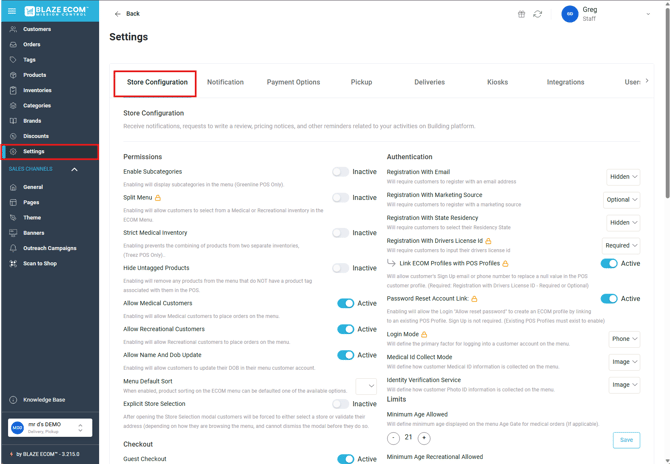
From there scroll down to Guest Checkout and Toggle the following options
Guest Checkout: Active
Save Checkout Info by Default: Inactive 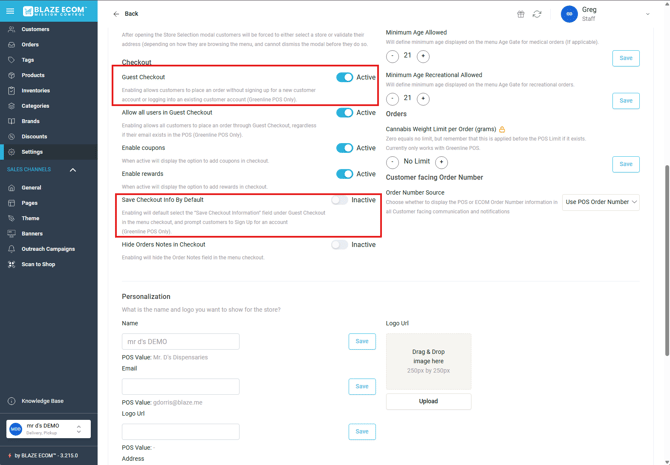
The final step is to navigate to ECOM Mission Control>Settings>Pickup
Under the Pickup option toggle the following:
Pickup Checkout Driver's License Required: Inactive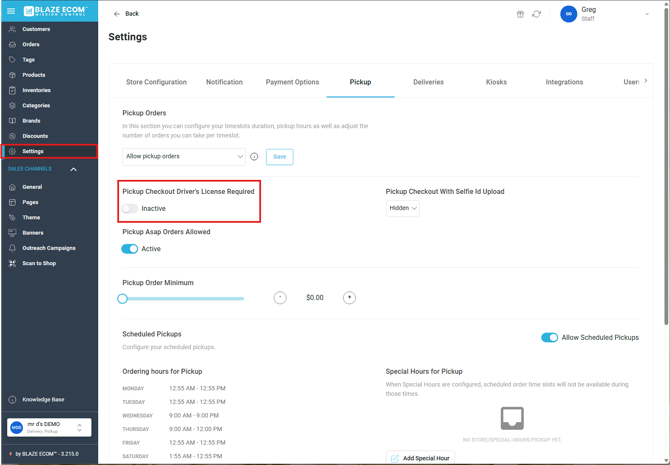
At this point you are set for Guest Checkout!
As shown below, you will see that I can now add items to my cart without being logged in, and can checkout.
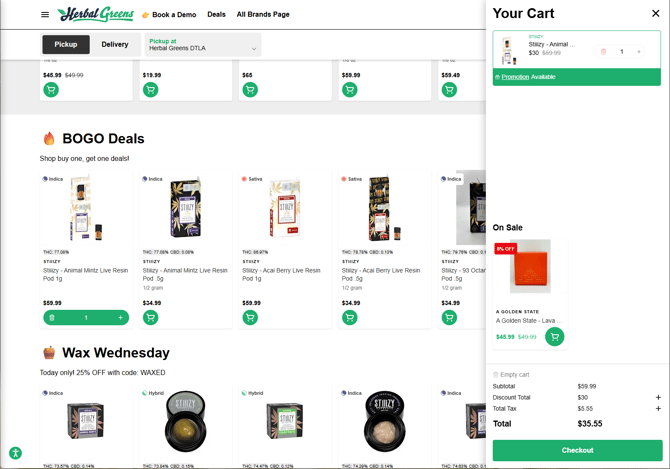
Upon entering the checkout screen I will be prompted to enter my contact information for the order. The customer has the option of saving their information for future ordering. They also have the option of signing in if they forgot to do so prior. 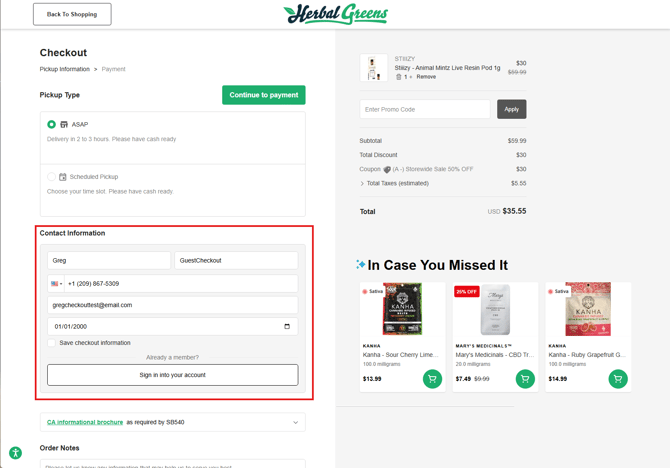
Upon completion of the payment screen your guest checkout order is complete!
Quick Note: The customer information that is entered is saved in your Mission Control Customers Tab and sent to the BLAZE POS.
If the customer details match an existing profile in the POS, the order will automatically link to that profile.
If you have any questions about please reach out to ECOM Support at
ecomsupport@blaze.me