.png?width=140&height=37&name=BLAZE-Logo-Blue%20(2).png)
What is "Bulk Creating Products?"
Bulk creating products allows you to download a template from your Greenline system, fill out data, import the template into the Greenline system and create products without the need to create each product manually. Using this template will streamline your product creation process to save you more time to focus on strategy, customer service, and your retail operations.
What Tools Do I Need To Fill Out The Template?
You will need access to Greenline, with the Can Edit Products and Can Bulk Edit Products permissions enabled. If these are not enabled please contact your dashboard administrator.
You will also require a CSV editor tool such as Excel, Google Sheets, or Numbers to be able to add the data into the file.
How Can I Download the Template?
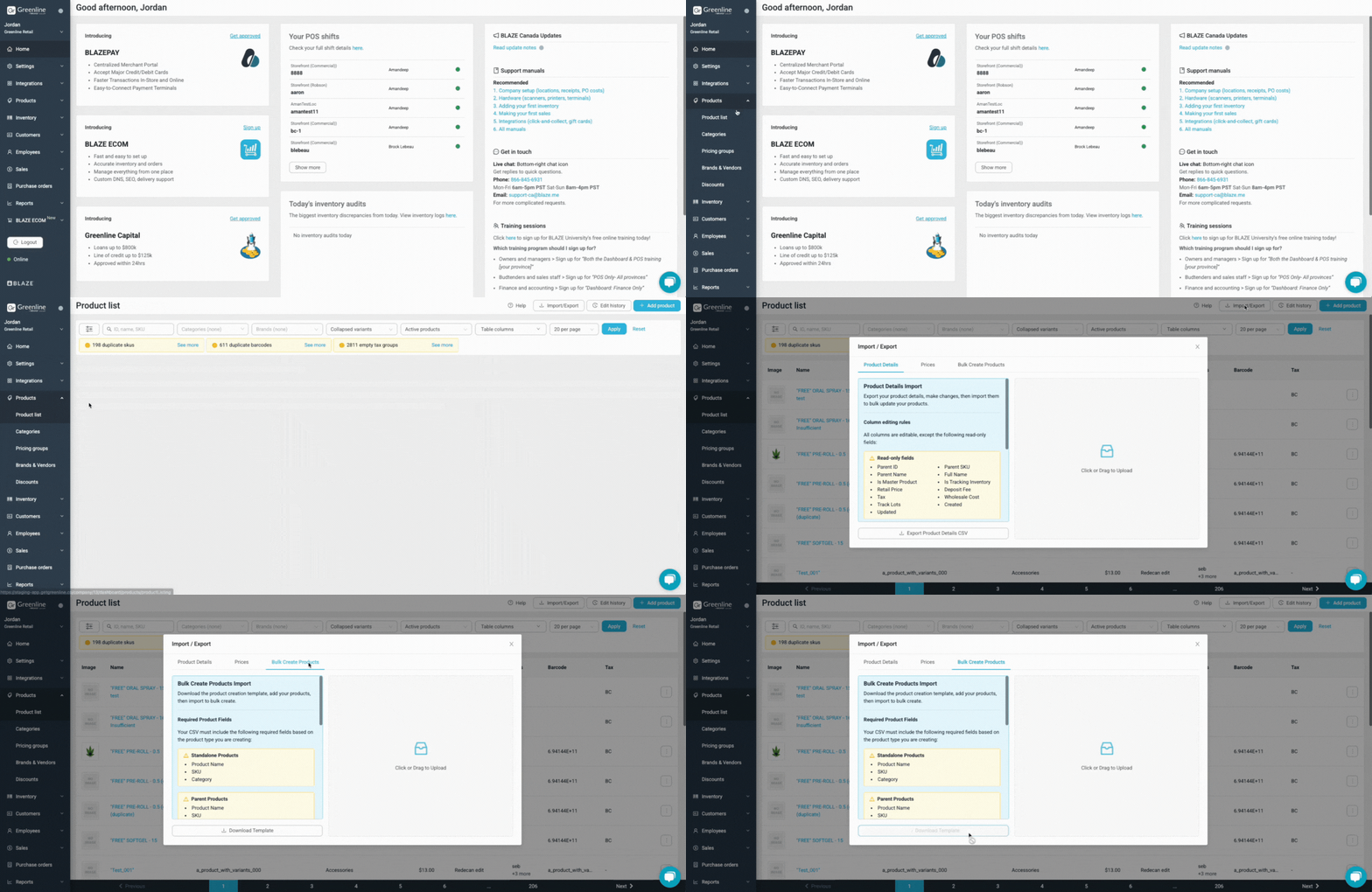
- Navigate to your Greenline Dashboard
- Products
- Product List
- Import / Export
- Bulk Create Products
- Download Template
What Should I Do Once the Template is Downloaded?
Now that you've downloaded the template, it's still to start filling out the data. Open the file in Excel, Google Sheets or Numbers and begin adding your product data to the column. Reference the table below to understand each column of the template and what data is required.
Quick Notes:
- The file must be a CSV format
- The file must have the appropriate column names from the template
- The data must match the required values outlined below
I've Added My Products, Now How do I Import My File Into Greenline?
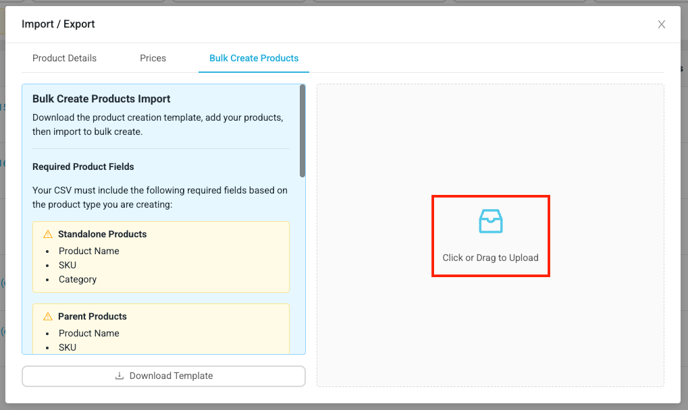
- Navigate to your Greenline Dashboard
- Products
- Product List
- Import / Export
- Bulk Create Products
- Upload your drag your file into the modal to begin the import
I Received a List of Errors When Trying to Import the File - Now What?
It's important to understand that Greenline runs two processes when importing your file to bulk create products.
First, it validates that there are no errors in the file:
- We check the file for correct file format (.CSV)
- We check that the column headers are valid and recognized
- We check the file for all required fields (ex: Name, SKU, Category)
- We check that new parent products are being created with variants
- We check that all cells have valid data types (ex: number, true or false, etc)
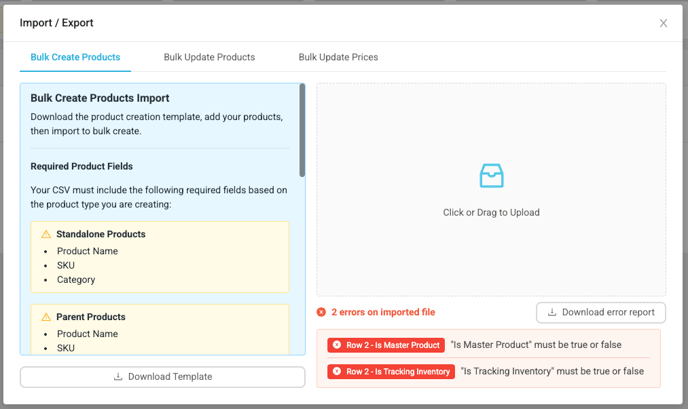
The error messages will tell you the row, column, and error message for a specific error.
If any of these checks fail on the first validation, you will receive error messages with a Download Error Report button. We recommend utilizing the Download Error Report button because if you leave the page, the errors will not resume on the modal.
Fix these errors, then reimport your file.
Example of validation errors:
I Imported My File and Got Different Errors - Why?
As mentioned above, Greenline runs two processes when importing your file to bulk create products. You may receive an additional set of errors after fixing file validation errors, that relate to database errors. These errors occur after the first validation process when we are actually creating the products in the backend of the system.
In this process, you may get errors that relate to:
- A product already existing in your system
- Your tax group or categories not existing in the system
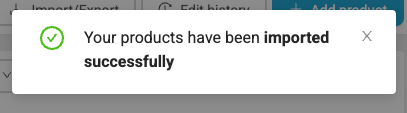
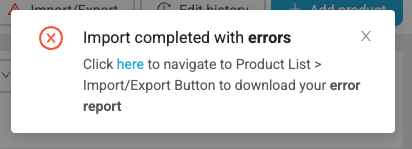
When your import is completed, you will be notified via a notification on your dashboard telling you whether the import was successful or had errors. If there are errors, click the notification and it will bring you to the bulk create products modal, where you can download an error report.
The error report will include the original data that you had submitted, for only the rows that had errored out, along with additional column explaining the error.
Download this file, use the error column to correct your errors, and then reimport those remaining products into Greenline.
All of your other products that did not error, have already been successfully created in the system.
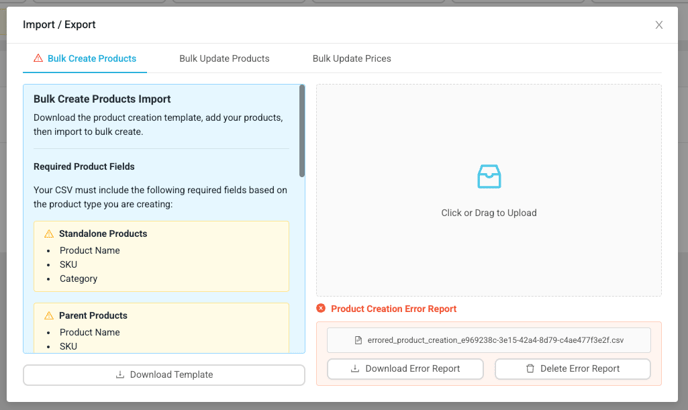
The error report will remain on your dashboard for 30 days, unless you choose to delete it prior using the Delete Error Report button.

Congratulations, you have successfully bulk created products!
Advanced Tips
- Categories and tax groups must be created prior to your import.
- Use a dash to indicate subcategories: ex: Dried Flower - Whole Flower
- Under the ellipsis for Products, Categories and Taxes you can "Copy Name" to make it easier to add these to your file

- New brands listed in your CSV will be created automatically
- SKUs and Names must be unique within your file and the system. Duplicate entries will result in errors.
- To add variants to existing parent products, you do not need to re-upload the parent row.
- To create a new parent product, include a row with Is Master Product set to true, followed by its variants.
- If there are any database errors, you'll be able to download a CSV report with details to help you correct your file.