.png?width=140&height=37&name=BLAZE-Logo-Blue%20(2).png)
Creating a Kiosk for the first time:
In order to create a ECOM Kiosk the first thing you need to do is log in to ECOM Mission Control and navigate to Kiosks.
Settings > Kiosks > Click Kiosks Enabled Toggle to Enable> Select a Kiosk Delivery Type Pickup/Delivery > Add Kiosk 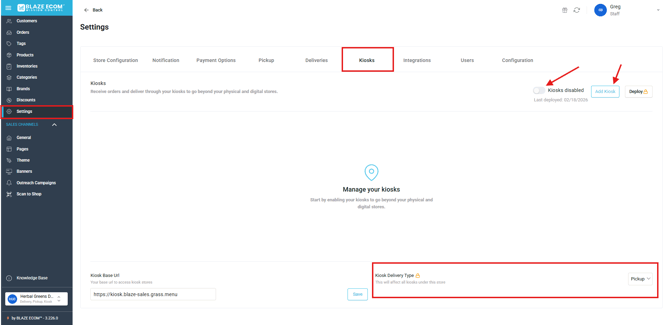
Note:
- if you have a pickup kiosk, pickup asap must be enabled in the pickup tab in mission control.
- if you have a delivery kiosk, delivery asap must be enabled in the delivery tab in mission control.
Fill in the Name, Address, Select a mode for verification and Save. 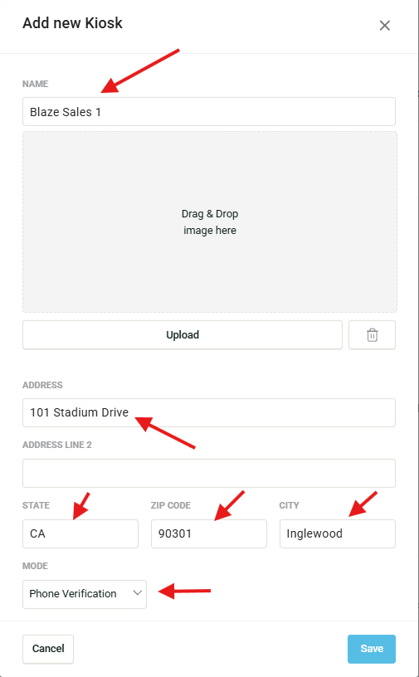
💡The linked articles will explain the differences in verification modes:
Phone Verification
DOB Verification
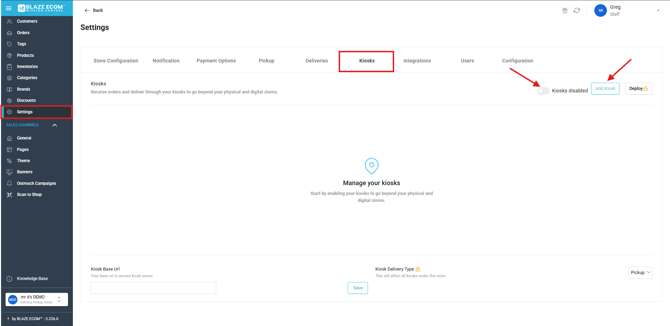
Add a Splash Screen
Splash Screens give you another way of branding and marketing your Kiosks.
To add a Splash Screen Image to your ECOM Kiosk we need to do the following steps:
Log in to Mission Control > Settings > Kiosks > Edit Kiosk Button 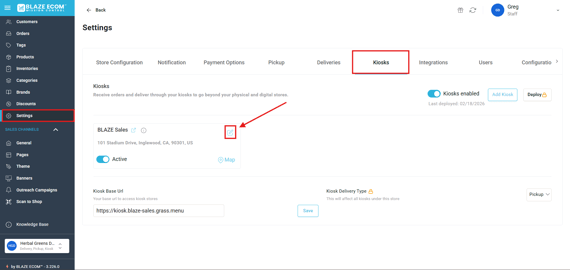
💡A few tips:
- We recommend adding "Touch Screen to Order " or similar verbiage to your image to lessen confusion for customers.
- Images do not have dimension limitations so you can freely upload an image to fit your devices screen size.
- Image file sizes are also not limited but we recommend keeping images 1MB and under for optimal performance.
From there you will be brought to the configuration window where you can upload your image. Once you click upload don't forget to save!
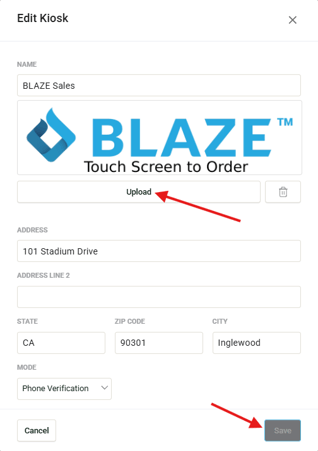
Once you click save - refresh the browser window on your kiosk and you will see your newly displayed Splash Screen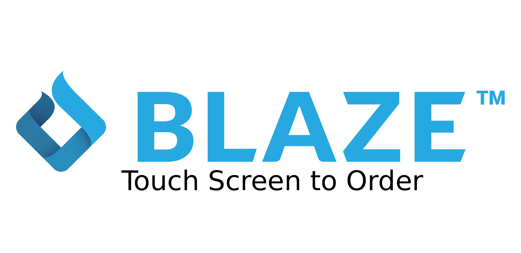
Configure payment options for ECOM Kiosks:
In order for customers to complete orders they will need a payment type assigned
We will be using "Cash" for this example.
Navigate to Settings > Payment Options > Cash > Edit Button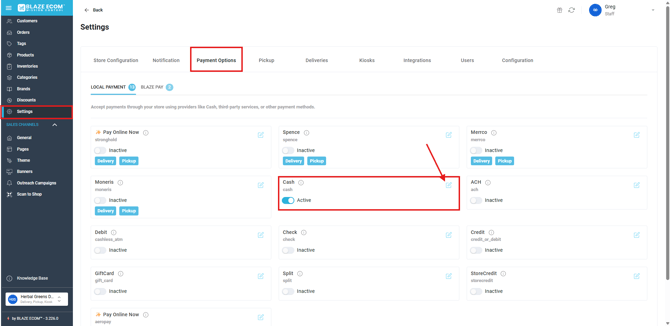
Click the "Fulfillment Type" drop down > Select Kiosk > Save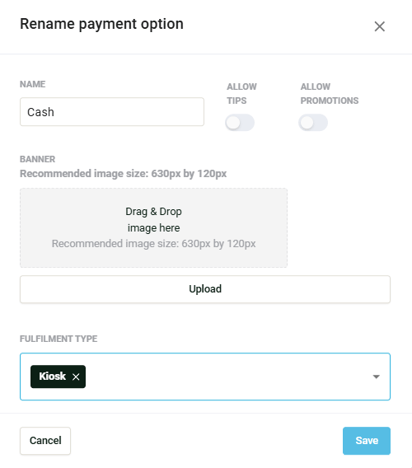
Your Kiosk is now configured to accept a payment type!